logsift
Pivot
The Pivot tab (below the log, next to Profile) makes a pivot table of a table’s rows, as in a spreadsheet, and a chart of it. It is there for every CSV or TSV file; for another log with columns, right-click a column title → Pivot Table and Chart. Every row is counted: nothing is sampled, and a million rows take about a second.
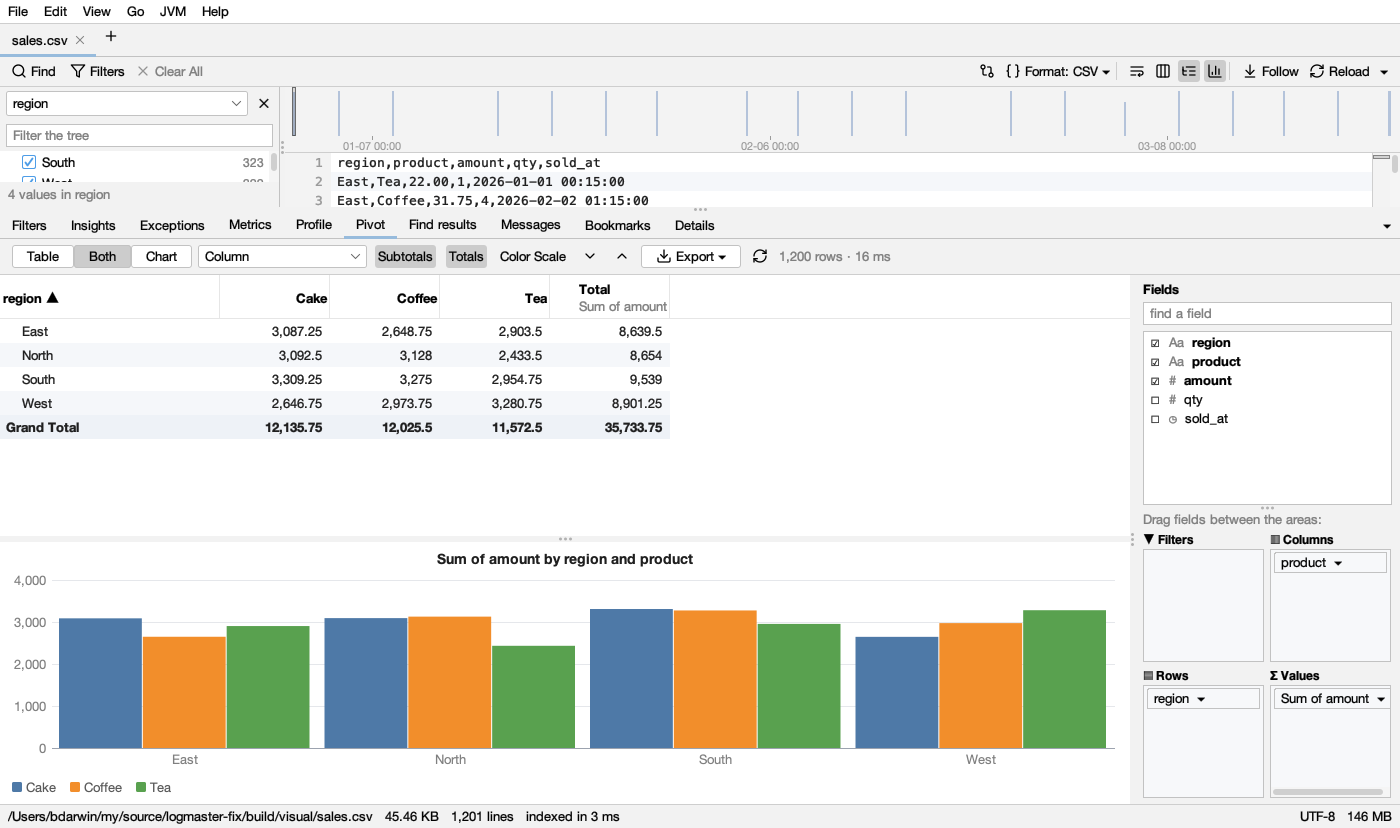
Fields and areas
On the right, Fields lists the file’s columns, each with its kind: # numbers, ◷ times, Aa text. find a field narrows a long list. Put fields in the four areas below it:
| Area | What it does |
|---|---|
| Rows | Groups the rows down the side, one line per value. A second field groups inside the first (region › month), with a subtotal on each group’s line |
| Columns | Splits each value across the top, one column per value of the field, plus a Total column |
| Values | What the cells hold: Sum, Count, Count distinct, Average, Min or Max of a field. With no values, the cells count the rows |
| Filters | Keeps only rows with some values of a field: click it → Choose Values… and untick the ones to leave out |
- Tick a field (or double-click it): numbers go to Values (summed), times and text to Rows. Untick it to take it out.
- Drag a field from the list to an area, or from one area to another; drag it out of the areas to remove it.
- Click a field in an area for its options: Summarize by (values), Show values as % of the grand total, % of the row’s total or % of the column’s total, Group by (times: Year, Quarter, Month, Week, Day, Hour, Minute, Day of the week, Hour of the day), Move Up / Move Down, Move to another area, Remove.
- Before any field is placed, a button offers a quick start, like Sum of amount by region.
The layout is remembered for each file (which fields are where, how they sum up and group), and comes back when you open the file again. A filter’s chosen values aren’t remembered.
The table
- A group with groups inside has a ▸ / ▾: click it (or double-click the label) to fold or open it. ⌄ opens every group, ⌃ folds them to the outermost.
- Subtotals shows a total on each group’s line; Totals adds the Grand Total row and the Total columns.
- Click a column’s title to sort by it: the labels A to Z (numbers and dates in order), a value largest first; click again for the other way. (blank) and (other) stay last.
- Color Scale colours each cell from its column’s lowest value (red) to its highest (green), as in a spreadsheet.
- Select cells as in a spreadsheet; Ctrl+C (⌘C) copies them as tab-separated text with their titles. Double-click a cell (or right-click → Show These Rows in the Log) to see its rows: the log gets a filter for each of the cell’s groups (Show: region = North). Times grouped by period aren’t filtered.
- Numbers that aren’t plain (1,234.50, $12, 50%, 7 ms) are read as numbers; cells that aren’t numbers don’t count in a sum or an average (a count counts them).
- More than 100,000 groups down the side, or 400 across, are put together as (other), and the status says so.
The chart
| **Table | Both | Chart** shows the table, the table with its chart below, or the chart alone. The chart shows the table’s rows (the innermost shown, folded groups as one) and a series per column (or per value): Column, Stacked Column, 100% Stacked Column, Bar, Stacked Bar, Line, Area, Stacked Area, Pie and Doughnut. Hover a bar, a point or a slice for its numbers; click it to select its row in the table. |
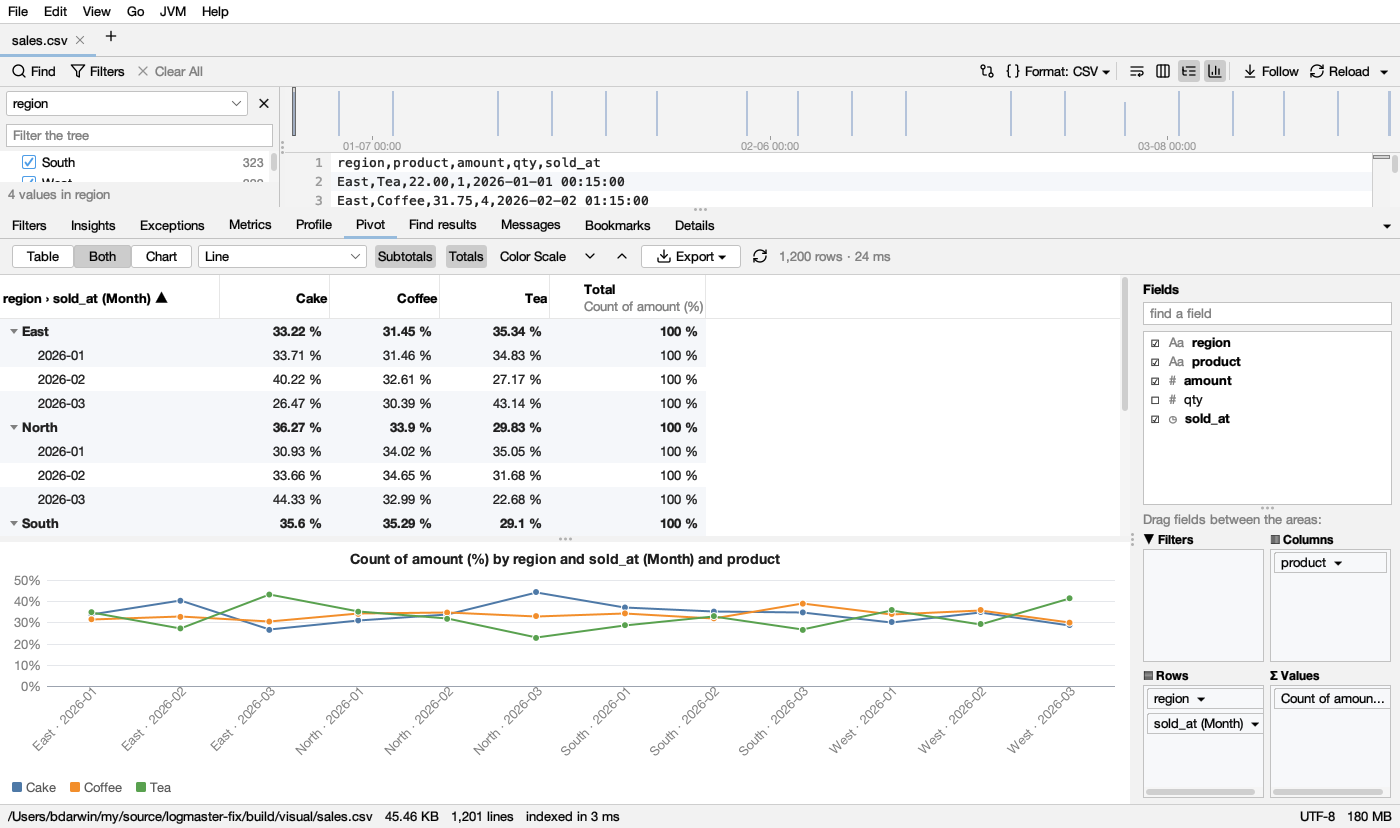
Export ▾ saves the table as CSV or the chart as a PNG picture, or copies either (the chart as a picture to paste in a document or a chat).
With the filters
Like Profile and Metrics, the pivot follows Matching only: with it on, it counts only the lines the log’s filters keep, and the tab says so in a strip on top (Only the 225 of 2,099 lines the filters keep, with a link to count every line).