Compare files
File → Compare Files… (or Compare Files… on the start page) opens a Compare tab to compare two files, or two folders. CSV and TSV files are compared as tables: rows are matched by a key (an ID column, or a few columns together), wherever they are in each file, so two exports of the same data in a different order compare cleanly. Other text files, logs included, are compared line by line, side by side. Logsift can also be git’s difftool and mergetool, with a three-way merge. To compare two logs by kinds of message, use Compare Logs by Message.
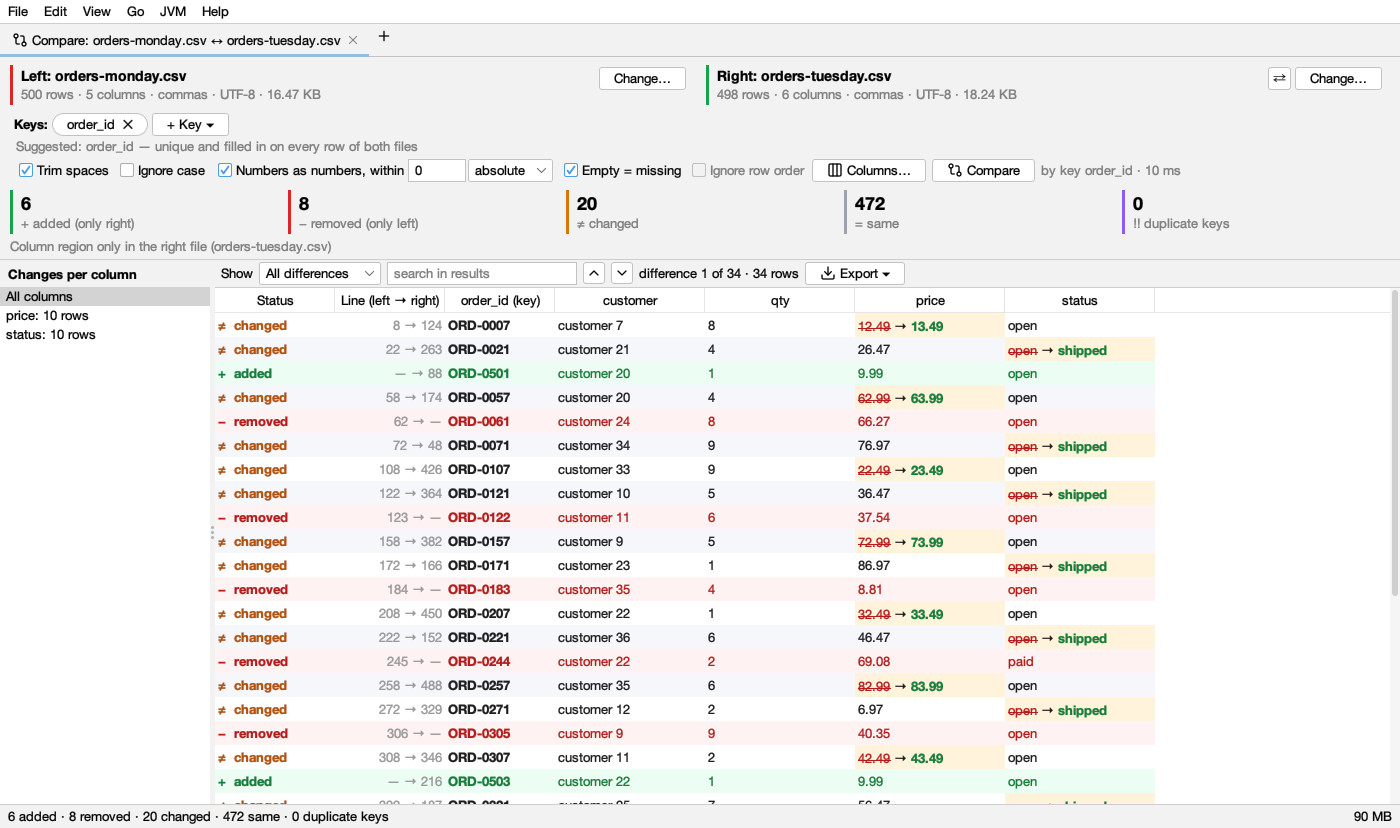
Starting a comparison
The Compare tab has a file browser on each side: Left (older) and Right (newer). They start at your home folder and the disks, and open at the folder you used last.
- Choose a file on each side, then click Compare (or double-click the second file). Folders open as you expand them. Zips open like folders, and so do zips inside zips (bundle.zip › old › exports.zip › data › stock.csv): files in a zip, and
.gzfiles, are unpacked first. - Type or paste a path above a side’s tree and press Enter to go there, even into a zip (…/bundle.zip/old/exports.zip/data/stock.csv) or a hidden folder.
~is your home folder. - Drop a file on a side to choose it there; drop two files at once to fill both sides.
- ⇄ Swap swaps the two sides.
When the comparison opens, the browsers make room for the results. The files’ names are in one row right above the table (Left: stock.csv · 40 rows · 3 columns · 730 B; hover the details for the separator and encoding), with ⇄ to swap them and Choose Files at the end. Choose Files shows the two browsers in the table’s place, each under its file’s name; the button becomes ✕ Close Files, in the same spot, and takes you back to the table. Choosing other files makes Compare stand out in the accent colour: click it to compare them, keeping your keys and options. Double-clicking a file in a browser does the same.
Other ways in:
- A CSV tab: the compare button in the log’s bar (the two arrows next to Format: CSV) opens a Compare tab with that file on the left, the right side open at the same folder.
- A folder’s or a zip’s tab: select two files (Ctrl-click, ⌘-click on macOS) and click Compare.
- Drag and drop on a comparison: drop a file on the left or right half of the results to compare another file on that side; an outline shows where it will land. Drop two files at once to replace both.
- Two files dropped on the window (anywhere else): Logsift asks whether to Compare them or Open in Two Tabs. Tick Don’t ask again to always do the same; Settings → General → Two files dropped changes it back. One file, three or more, or a folder open as always.
If a file can’t be compared (it isn’t CSV or TSV), the tab says why next to Compare.
The files may use different separators (commas in one, semicolons or tabs in the other), different encodings (UTF-8, UTF-16, Windows-1252), a byte order mark, Windows line ends and quoted fields over several lines.
Keys
A key is what makes a row the same row in both files: an order number, a user ID, or a few columns together (region + sku). Rows with the same key are compared value by value; the order of rows doesn’t matter.
- No key at first: a comparison starts without a key, with rows lined up in file order (see No key below), so nothing is chosen for you.
- Suggested key: Logsift looks for a column, or two or three together, whose values are filled in and different on every row of both files (the first 20,000 rows of big files), and prefers names like id, key, …_id and code. Use order_id as Key, next to the keys, uses it in one click; hover it for why (Suggested: order_id — unique and filled in on every row of both files). Once in use, ✓ suggested follows the key.
- Change it: ✕ on a key removes it. Choose ▾ next to the keys opens a list of the columns right below it: tick the key columns (several make a key together), type in filter columns to find one in a wide file (Enter ticks the first match), Clear unticks them all. When the list closes (click outside or press Escape), it compares again, once. The keys you chose stay when you drop or swap files, if the new files have those columns.
- No key: rows are lined up in file order, as a text diff lines up lines: equal rows match, a row changed in place shows as changed, and rows added or removed in between show as such. Ignore row order instead matches equal rows wherever they are (only whole rows: nothing is “changed”).
- Key repeats: a key value on more than one row of a file (ORD-7 twice) can’t be paired one to one, so all its rows, in both files, are listed as ‼ key repeats and not compared, never paired at random. Usually it means the key isn’t unique: tick another key column too, to tell the rows apart. Or a file has a row twice (exported twice). Hover Key repeats in the Show list for an example from your files. Without a key, nothing can repeat: the list says (with a key).
Columns
Columns are matched by name, whatever their case or the spaces around them (Price and price *). A column only one file has is said once above the table (Column region only in the right file*), not as a change on every row.
- Leave a column out: on the keys’ row, under the right file, Not compared: lists the columns left out of the comparison. Choose ▾ next to it opens the same kind of list, with a filter: tick the columns to leave out, for example a last updated column that always differs. ✕ on one compares it again. It compares again when the list closes. A column left out doesn’t make a row changed; it is still shown at the end of the table, in gray, as (not compared).
- Columns ▾ (above the table) only changes what the table shows: untick a column to hide it (it is still compared), Show All Columns to bring them back. Pair Columns by Hand… compares a column with one of another name (cost in the left file with price in the right).
Options
| Option | What it does |
|---|---|
| Trim spaces | Spaces at the start or end of a value don’t count (on by default) |
| Ignore case | Paid = paid, in keys too |
| Numbers as numbers, within | Values that are both numbers are compared as numbers, so 1.50 = 1.5 (on by default). Within allows a difference: an absolute amount (0.01), or a % of the larger number |
| Empty = missing | An empty value equals one that isn’t there, as in a row with fewer fields than the header (on by default) |
| Ignore row order | Without a key: match equal rows wherever they are |
After changing options, Compare in the options’ row stands out in the accent colour (Changed: press Compare): click it to compare again. Keys and columns left out compare again at once.
What it shows
Show (above the table) picks the rows, and says how many there are of each, with its symbol in its colour:
| Show | Colour | Means |
|---|---|---|
| All differences | Everything but the same rows (the default) | |
| ≠ Changed | amber | The same key with different values |
| + Added (only right) | green | A key only in the right file |
| − Removed (only left) | red | A key only in the left file |
| ‼ Key repeats | purple | Key values on more than one row of a file: not paired, not compared. Only with a key |
| = Same | gray | The same key, the same values: unchanged rows |
| Everything | All rows |
Changes per column, on the left, says how many rows changed in each column (price: 1,204 rows), most first. Click one to show only those rows; All columns shows them all again.
| **Unified | Side by Side** (above the table) picks the view; Logsift remembers it. |
- Unified: one table, as below.
- Side by Side: the left file’s rows on the left and the right file’s on the right, a key’s two rows on one line, scrolled and selected together. It shows every row (Show: Everything): unchanged rows too, so you see the changes where they are in the files. A row only one file has is empty (gray) on the other side; a changed row is tinted amber, its changed values on a stronger amber, red on the left and green on the right. Double-click a side to open the row’s line in that file. Choose another Show for side by side and Logsift remembers it; the unified table keeps its own (all differences at first).
Next to the scroll bar, a strip of marks shows where the differences are among the rows shown: green added, red removed, amber changed, purple key repeats, with a box for the part on screen. Click or drag on it to go to the difference there. Switching views or Show keeps the selected row when it is still shown.
The table (unified) has a row per key: its Status (the symbol and the word, in its colour), Line (left → right) in each file, the key columns ((key) after their name) and the compared columns.
- A changed value shows as
old→ new: the old value struck through in red, the new one in bold green, on a light amber cell (in dark mode lighter red , green and a dark amber cell). Hover a value for both in full. A line break in a value shows as ⏎. - Added rows are on a light green background with green values, removed rows on a light red one with red values, key repeats rows on a light purple one.
- search in results keeps the rows with that text in a value (any case).
- Selecting, as in a spreadsheet: click a cell; drag, or Shift-click, for a range; Ctrl-click (⌘-click on macOS) to add cells. Click a Status or Line cell to select whole rows (side by side: on both sides), or a column’s title for the whole column (Shift-click a second title for the columns between). Selected cells keep their colours under a tint of the accent colour, and the column titles of the selection turn the accent colour. Ctrl+C (⌘C) copies the selection as tab-separated text, ready to paste in a spreadsheet: a changed value as old → new, whole columns with their titles. Right-click → Copy with Column Titles adds the titles for any selection; Ctrl+A selects everything.
- ▲ ▼ (Shift+F7 / F7) go to the previous and next difference; it says difference 3 of 120.
- Double-click a row to open its line in the right file (the left one for a removed row). Right-click for either file.
Export
Export ▾:
- Differences as CSV…: every row that differs, with its status, its line in each file, the key, and each compared column’s left and right value (for a changed row, only the values that changed have a right value).
- Rows Shown as CSV…: the rows the table shows now (after Show, the column and the search).
- Copy Summary and Save Summary…: a few lines saying what was compared and the counts, and the changes per column.
Limits
- Big files are fine: only each row’s place in the file and a few hashes are kept in memory, and rows are read again when shown. Two files of a million rows each compare in a few seconds, with about 50 MB of memory kept.
- The key suggestion looks at the first 20,000 rows of each file. A key that repeats later shows up under key repeats.
- Values are compared as text unless both are numbers; dates are text (2026-01-02 and 02/01/2026 differ).
- Without a key, rows changed in place are paired in order within a run of changes; if many rows moved, choose a key.
- Changing a file while it is compared isn’t noticed: compare again.
Text and logs
Files that aren’t CSV or TSV (logs, code, configs) are compared line by line, side by side, as a code review shows them. A CSV comparison’s Compare as Text shows the same files this way, and Compare as Table goes back.
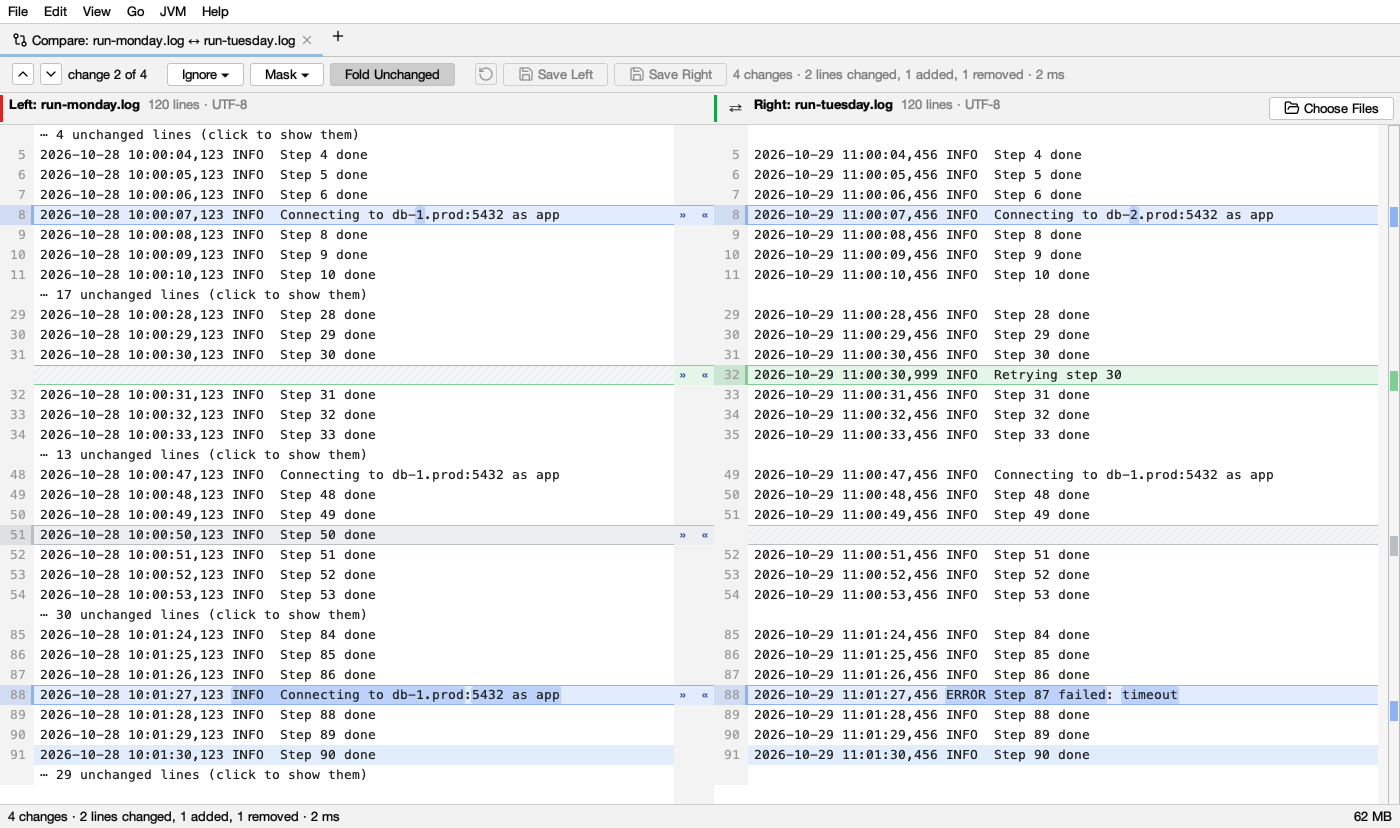
- Lines that match are on one row; a line only one file has faces an empty, hatched row. Changed blocks are blue, lines added green, lines removed gray, and the words that differ within a line are marked stronger.
- ▲ ▼ (Shift+F7 / F7) go from change to change: change 2 of 4. The strip by the scroll bar marks every change; click it to go there.
- Ignore ▾: spaces at the ends of lines, or all spaces, and case. Mask ▾: times and dates, numbers, or IDs (UUIDs, long hex, IDs with digits) count as equal, so two runs of the same job line up and only what really changed shows. Masked parts aren’t marked as changed words.
- Fold Unchanged folds stretches of unchanged lines away (3 lines stay around each change); click a fold to open it.
- Between the panes, » copies a change to the right file and « to the left one (also on a right-click). Undo takes it back; Save Left / Save Right write the file, with its encoding and line ends (a file in a zip can’t be saved). An edited file has • after its name.
- Click a row, drag or Shift-click for more; Ctrl+C (⌘C) copies those lines of that side. Double-click a line to open the file there.
- The names over the panes say how many lines, the encoding and CRLF line ends. Choose Files and ⇄ work as for tables. Two binary files are only said to be the same or not. Text is compared up to 256 MB a file.
Merging
A three-way merge shows Yours on the left, the Result in the middle and Theirs on the right, on aligned rows. Changes made on one side only are taken already; a conflict, where both sides changed the same lines differently, is red until resolved.
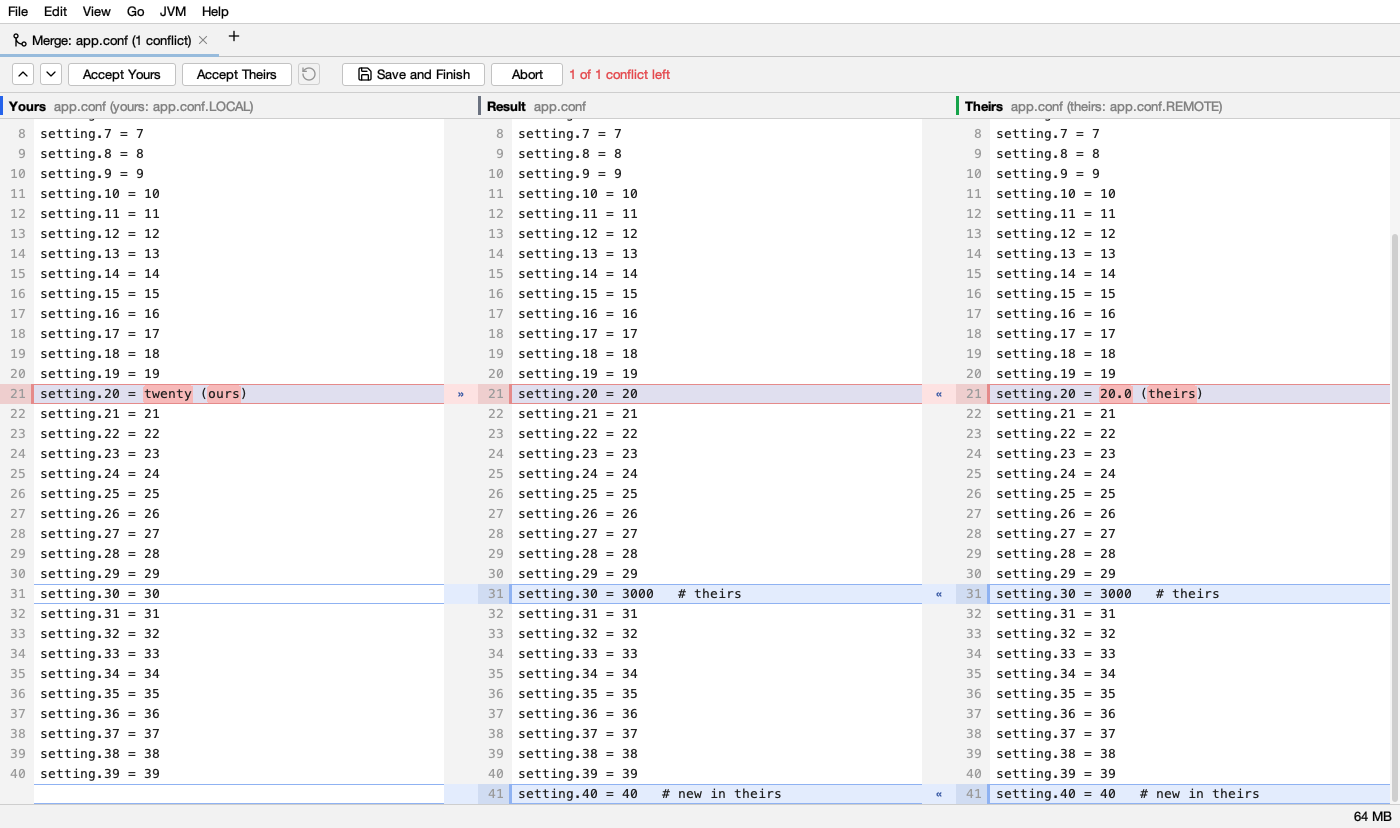
- » takes your change for a conflict, « theirs; taking both puts them one after the other (yours first if you took yours first). A right-click offers Accept Yours, Accept Theirs, Yours, Then Theirs, Theirs, Then Yours, Keep the Original (Base) and Edit the Result…; double-click the result to edit it by hand.
- Accept Yours / Accept Theirs resolve every conflict at once. ▲ ▼ (F7) go from conflict to conflict; the status says how many are left. Undo takes back the last step.
- Save and Finish writes the result (asking first if conflicts are left: they keep git’s
<<<<<<<=======>>>>>>>markers) and closes the tab. Abort (or closing the tab) leaves the file as it was.
Git
Help → Use Logsift with Git… shows the settings that make Logsift git’s difftool and mergetool, and Set Up Git writes them to your global git config (or Copy Commands to paste them yourself):
git config --global difftool.logsift.cmd '"/path/to/Logsift" --diff "$LOCAL" "$REMOTE"'
git config --global mergetool.logsift.cmd '"/path/to/Logsift" --merge "$LOCAL" "$REMOTE" "$BASE" "$MERGED"'
git config --global mergetool.logsift.trustExitCode true
git config --global diff.tool logsift
git config --global merge.tool logsift
Then git difftool shows each changed file in a Compare tab (git goes on to the next file when you close the tab), and git mergetool opens each conflicted file as a merge: Save and Finish tells git it’s resolved, Abort that it isn’t. If Logsift is open, they open in its window; if not, a window opens just for them and closes when you’re done.
From a terminal: logsift --diff LEFT RIGHT and logsift --merge LOCAL REMOTE BASE MERGED do the same.
Folders
Choose a folder (or a zip) on each side and click Compare: one table shows both, a row per file or folder, with its name, size and time on each side and, in the middle, = the same, ≠ different, ◀ only on the left or ▶ only on the right.
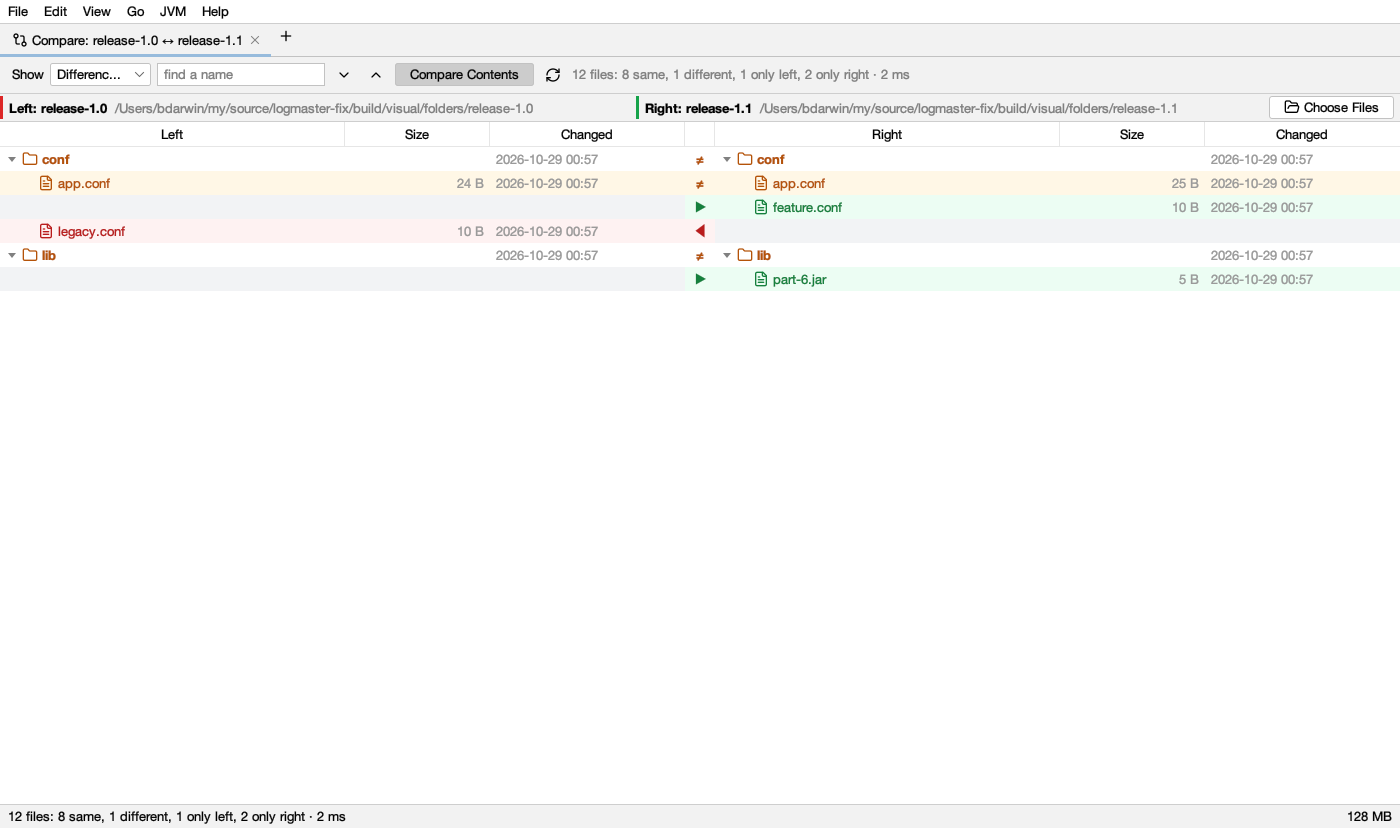
- Files of the same size are compared byte by byte (Compare Contents; turn it off to count the same size and time as the same, quicker for big folders). A folder is the same when everything in it is; one with differences is ≠ and opens by itself.
- Show lists the Differences at first, with how many; or Everything, Same, Different, Only left, Only right. find a name keeps the files whose name has the text.
- Different rows are amber, rows only on the left red, only on the right green, with the empty side gray. The later time of a file changed on both sides is bold.
- Double-click two files to compare them in a tab of their own (as a table or as text); a file on one side only opens as a log. Right-click for the same, and to copy the path. ⌄ ⌃ open and close every folder.
- A zip is compared like a folder, the zips inside it too (as folders named like the zip). Hidden files and tool folders (.git, .idea, node_modules…) are left out; at most 200,000 files a side.
- Nothing is copied, moved or deleted: the comparison only reads.