Folder search
File → Search in Folder… (Ctrl+Shift+F, ⇧⌘F on macOS), Search in Folder… on the start page, Find in all files in a folder’s tab, or the folder button in the find bar opens a search tab. (Dropping a folder on the window opens a tab of its files: see Folders.)
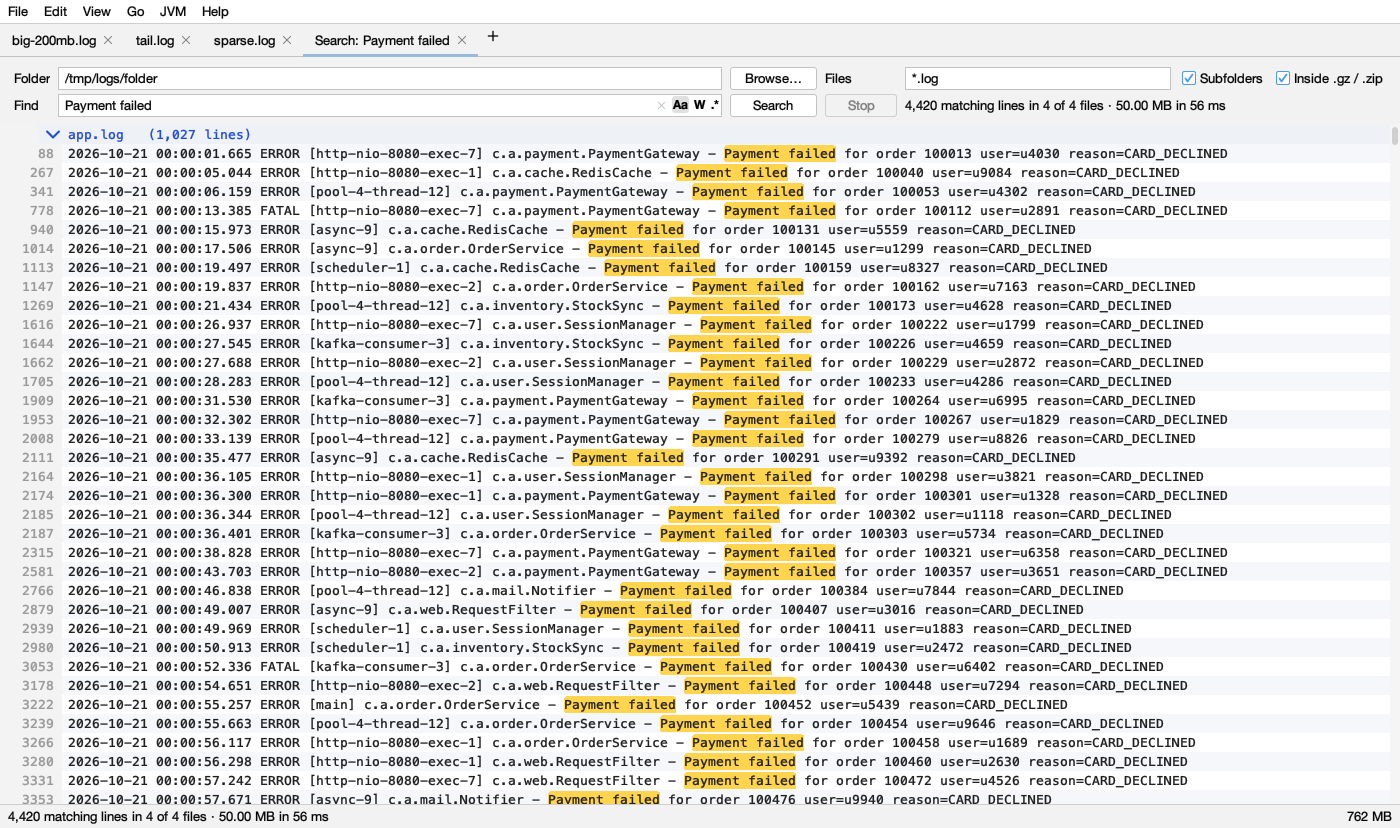
The form
- Folder (or a
.zip), with Browse…. It starts with the current log’s folder. - Files: name patterns, separated by
;or spaces. The default is*.log;*.txt;*.out; empty means all files. Rotated logs count as the log they came from:*.logalso findsapp.log.1,app.log.2026-10-21andapp.log.2.gz. - Subfolders and Inside .gz / .zip (both on): look in subfolders, and inside archives, also zips inside zips (up to 5 levels deep).
- Find, with Aa (match case), W (whole word) and .* (regular expression). Search (or Enter) starts; Stop (or Esc) stops.
Logsift remembers these for next time. All files are searched in parallel; binary files are skipped. Results appear while the search runs, and the status says how many files had matches: 1,204 matching lines in 7 of 42 files.
The results
- Each file has a header line with its path (and its place inside a zip:
bundle.zip › logs › app.log) and the number of matching lines, in blue on a light gray band ( on dark gray in dark mode). - Matches are highlighted in yellow ( dark yellow in dark mode).
- Double-click a line to open the file at that line, with Find All already run there. Files from a
.gzor.zipare unpacked to a temporary file first. - Double-click a file header to fold or open it. Expand All / Collapse All do every file.
- Filter results by file name shows only the files whose name or path has some text.
- Right-click: Open File Here, Copy File Path, Collapse All Files, Expand All Files.
A gray line … N more matching lines; open the file to see all means a file had more matches than are kept (10,000 per file, a million in all). They are counted but not listed; open the file to see them all.