Opening logs
The start page
With nothing open, Logsift shows a start page. With logs open, + after the tabs shows it again.
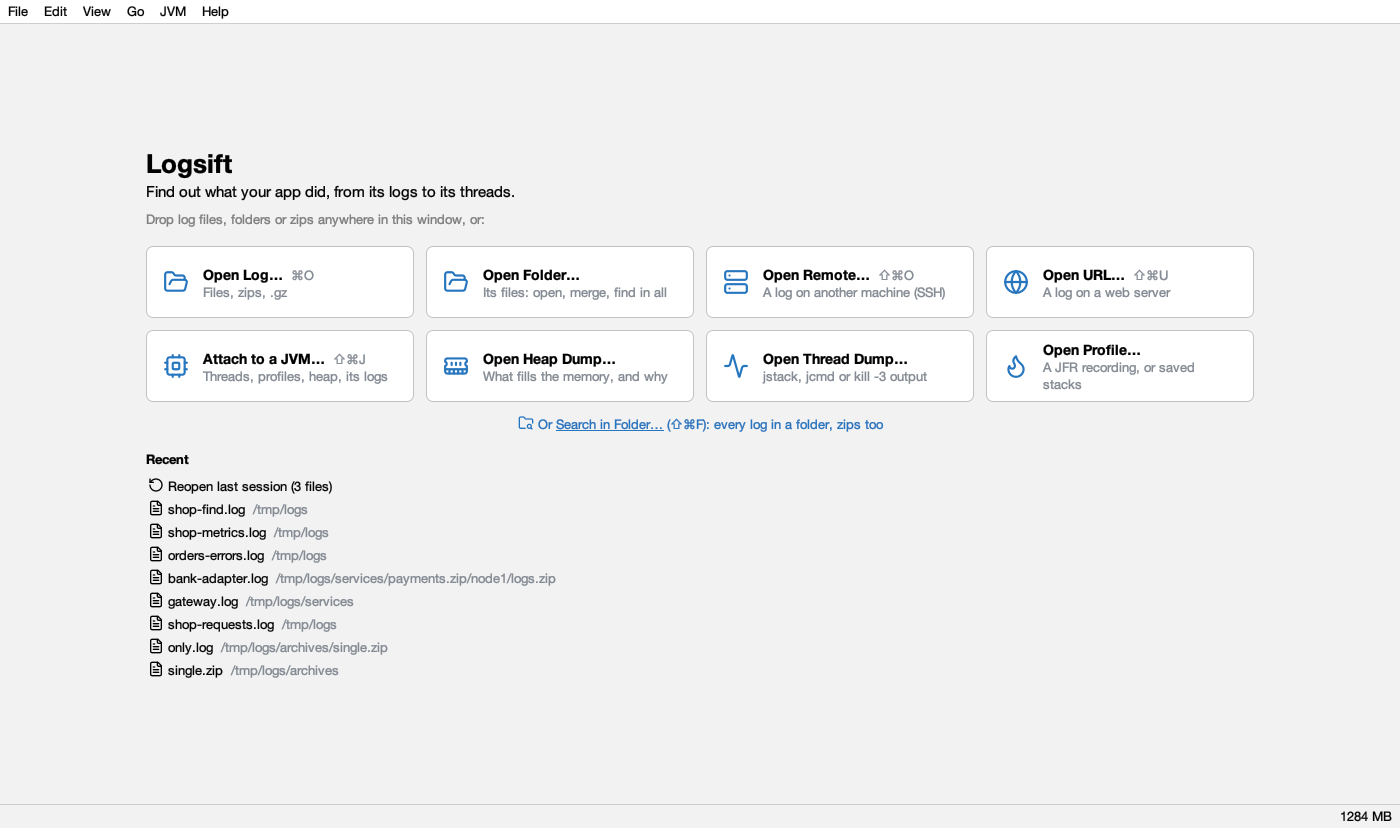
| Button | Opens |
|---|---|
| Open Log… | Files, zips, .gz (Ctrl+O) |
| Open Folder… | A folder’s files in a tab (below) |
| Open Remote… | A log on another machine over SSH (Ctrl+Shift+O) |
| Open URL… | A log on a web server (Ctrl+Shift+U) |
| Attach to a JVM… | Threads, profiles, heap of a running Java program (Ctrl+Shift+J); see JVM connections |
| Open Heap Dump… | A .hprof file; see Heap |
| Open Thread Dump… | jstack, jcmd or kill -3 output; see Thread dumps |
| Open Profile… | A JFR recording or saved stacks; see Profiling |
Under them, Search in Folder… (Ctrl+Shift+F) searches every log in a folder, zips too: see Folder search. Below that, Recent: Reopen last session and your last files and folders. On macOS the shortcuts use ⌘ instead of Ctrl.
Files
- File → Open… (Ctrl+O), or drag files onto the window. A file that is already open is just selected.
- Windows: right-click a file or folder → Open with Logsift (a folder opens as a tab of its files, below). Logsift is also in the Open with list of
.log,.txtand.outfiles, without taking over what double-click does. - macOS: Open With, or drop files on the Dock icon.
- One window: if Logsift is already running, files open in the same window.
- File → Open Recent lists the last 15 files. File → Reopen Last Session reopens the logs that were open last time; Logsift also does that at start (you can turn it off in Settings). Each file remembers its filters, formula, level buttons, Matching only and position.
A big file shows its first lines at once and is indexed in the background; the status bar says indexing…, then indexed in N ms. A file on a slow network or cloud drive shows Waiting for the file… with Cancel.
Folders
File → Open Folder… (or the start page’s Open Folder…, dropping a folder on the window, or Open with Logsift on a folder) shows a folder’s files in a tab, as a tree with their sizes: subfolders first, then files. It works like a zip’s tab:
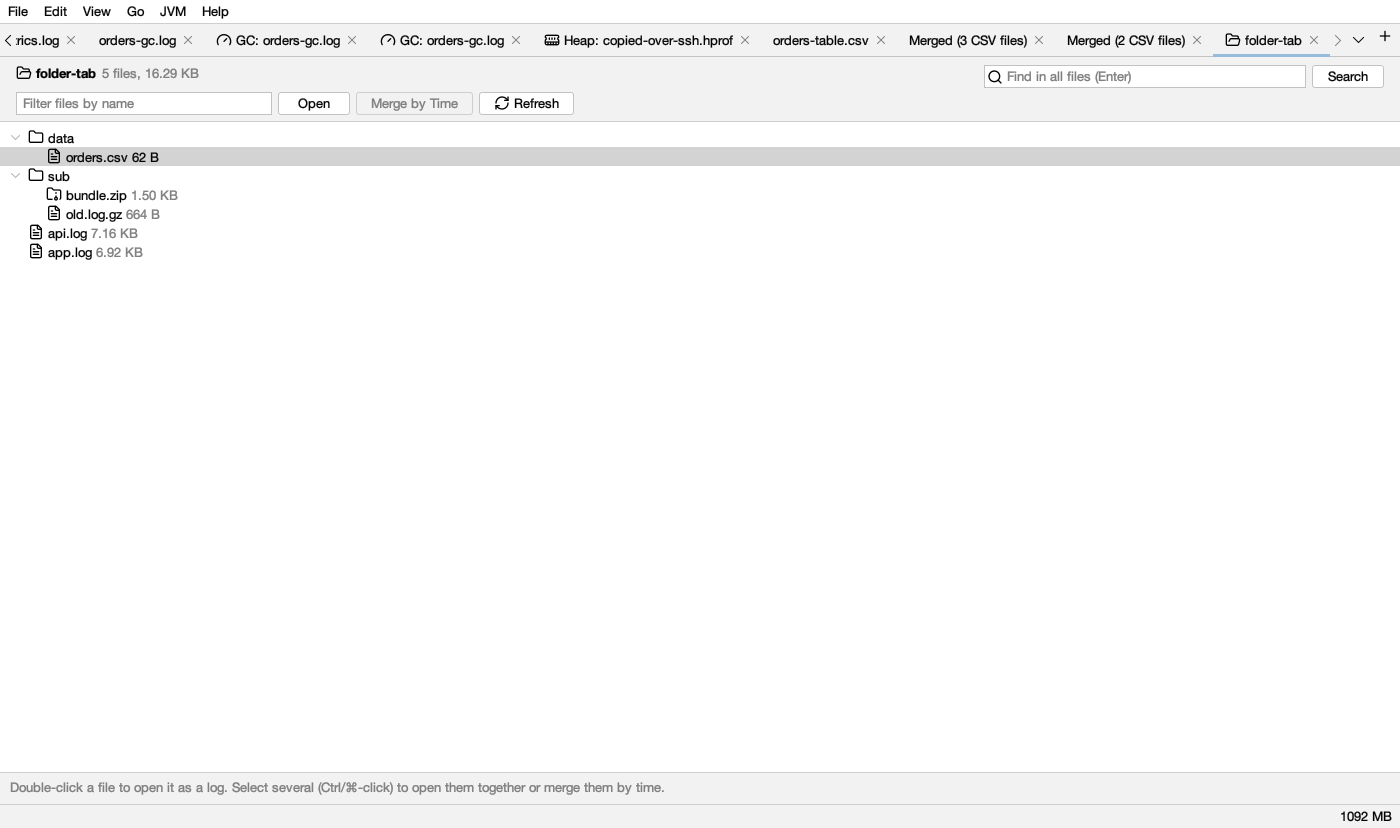
- Filter files by name narrows the tree.
- Double-click a file (or select several and press Open) to open it as a log. A
.zipopens as its own tab, a.gzdirectly. - Merge by Time merges the selected files (
.gzfiles are unpacked first; CSV files make one CSV, see Merge CSV files). - Find in all files (Ctrl+F in the folder’s tab) is a folder search of the folder and its subfolders, inside zips and
.gzfiles too, whatever the files are called. - Refresh lists the files again. A very big folder (a home folder,
/var/log) is listed in the background and shows its first 20,000 files; the tab then says so. Folders that can’t be read are left out. - The folder is in Open Recent and on the start page; it isn’t reopened with the last session.
Zips and .gz files
-
A
.zipopens as a tab showing its folders and files as a tree (zips inside it too), with their sizes.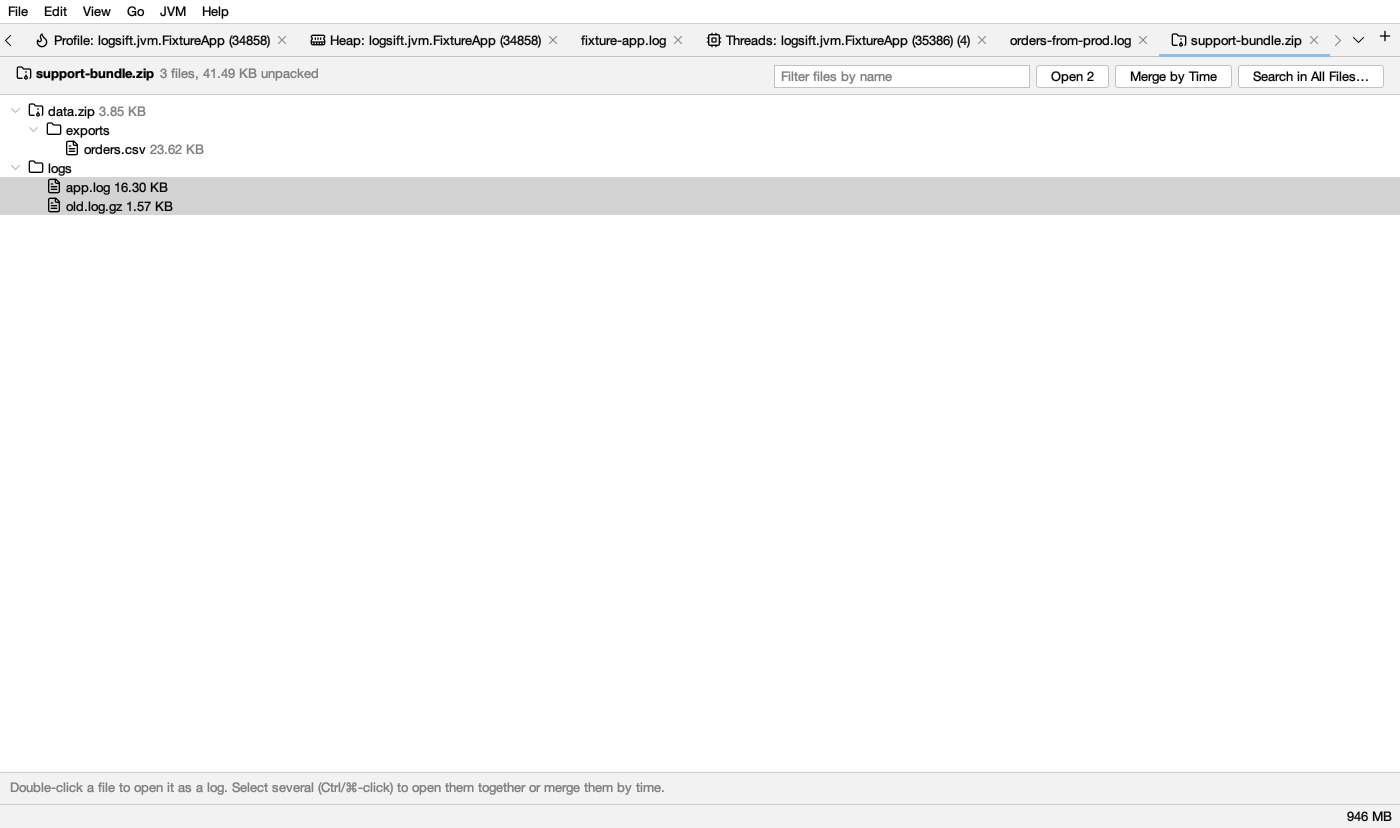
- Double-click a file (or select several and press Open) to open it as a log.
- Merge by Time merges the selected logs.
- Find in all files (Ctrl+F in the zip’s tab) searches every file in it.
- Filter files by name narrows the tree.
- A zip with one file opens that file right away. A
.gzfile opens directly. - A file from a zip is named by its place in it (
bundle.zip/logs/app.log) and behaves like any log. It is unpacked to a temporary copy once, when first opened, so it doesn’t follow the original. - Zips inside zips are followed 5 levels deep.
Web addresses
File → Open URL… (Ctrl+Shift+U) takes one or more http/https addresses, one per line (lines starting with # are skipped).
- Sign in: None, User and password, or Token (sent as
Authorization: Bearer …). Passwords are not saved. - One address opens in a tab. Several are downloaded into one temporary folder and searched together. A
.zipor.gzdownload is unpacked. - The file is a copy: it doesn’t follow the server’s file as it grows.
- Certificates: they count as trusted when Java or this computer trusts them (Windows’ and macOS’s own stores, where a company proxy’s certificate usually is). When neither does, Logsift asks: Open Anyway (this time), Always for host, or Cancel. Choose to open only if you trust the network and the server.
WSL (Windows)
File → Open from WSL… opens your Linux home folder. Windows reaches WSL files directly (\\wsl.localhost\Ubuntu\…), so they open and follow like any other file, without SSH. The menu item shows only when WSL is installed.
Command line and piped output
logsift app.log other.log      # open files
logsift --version              # print the version
kubectl logs -f my-pod | logsift -
docker logs -f my-app 2>&1 | logsift -
journalctl -f | logsift -
Piped output is saved to ~/.logsift/stdin/ as it arrives and followed like a growing log. Captures older than a week are removed. Piped input always gets its own window.
On macOS the command is /Applications/Logsift.app/Contents/MacOS/Logsift; on Linux /opt/logsift/bin/Logsift (.deb) or Logsift/bin/Logsift (.tar.gz). Add an alias for convenience.
Logs on a server (SSH/SFTP)
File → Open Remote (SFTP)… (Ctrl+Shift+O).
- Server: host, port (22) and user, then a Password or a Private key (
~/.ssh/id_ed25519,id_ecdsaorid_rsais suggested) with its passphrase. Click Connect. - Files: type a folder in the address bar (
/var/log,~/logs, or a name relative to the folder shown) and press Enter, or double-click folders (..or Backspace goes up). Double-click a file or press Open. - Load: the Last 50 MB (by default) or the Whole file. A whole multi-GB file is a big read of the server’s disk and network; the last few MB are usually enough.
Logsift keeps a local copy up to date while the remote log grows (new lines are fetched every second). It starts over when the file is truncated or rotated, and reconnects by itself if the connection drops: the status bar then shows ⚡ reconnecting… (reason). Every feature works on remote logs.
Host keys are checked against ~/.ssh/known_hosts. For a new server, Logsift shows its key and asks whether to trust it and remember it. If a known server’s key changed, the same question says REMOTE HOST IDENTIFICATION HAS CHANGED: answer No unless you know why it changed (see Troubleshooting).
Logsift remembers the server, user, key and the last folder per server, never passwords.
Encodings
UTF-8, UTF-16 and Windows-1252 are detected by themselves. See The log view.
Export
File → Export saves lines to a new file: Lines Shown by Filters… (Ctrl+Shift+E), Find Results…, Selected Lines… or Everything in the View…. The original bytes are copied (line endings and encoding unchanged), so even large exports take seconds.