Timeline
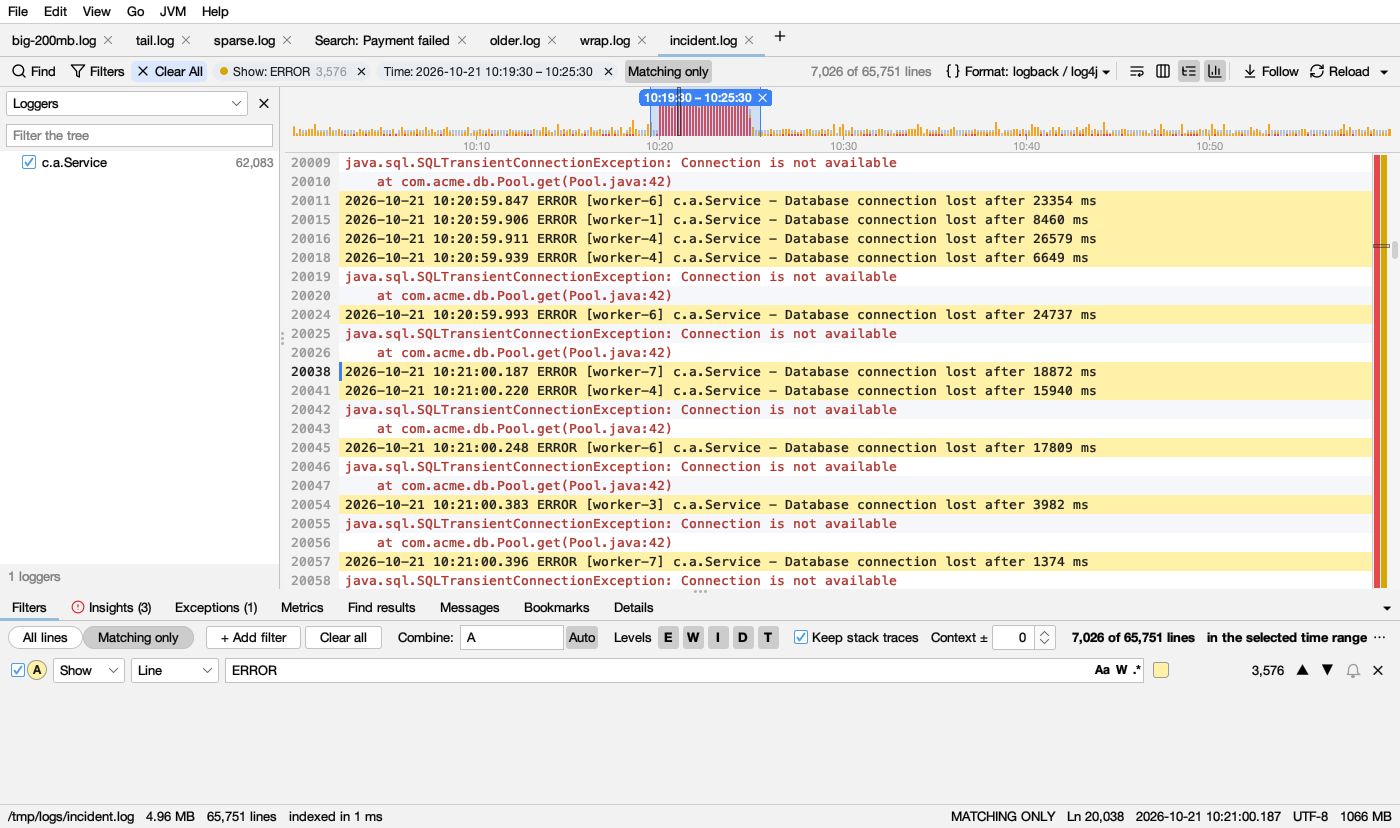
When a log has timestamps, a timeline above it shows how much was logged over time, so incidents stand out at a glance.
Colours
| Bar | Light | Dark | Means |
|---|---|---|---|
| gray-blue | All lines in that stretch of time | ||
| amber | Warnings | ||
| red | Errors, drawn in front | ||
| blue band | The time range you selected |
A see-through box shows the part of the file on screen. Hover a bar for its time, and how many lines, errors and warnings it has.
How to read it: a tall red bar is an error burst. A gap with no bars is a time nothing was logged: the program was quiet, stuck or not running. Insights points out both.
Using it
- Click to jump to that time.
- Drag across it to show only that time range. A blue label shows the range; click its ✕ (or right-click → Show All Times) to show all times again. The range also shows as a Time: chip in the log’s bar.
- The range works with the filters: drag over an incident, add an ERROR filter, and you see just the errors of the incident.
- Go → Go to Time… (Ctrl+Shift+L) takes
10:05,10:05:30.250or2026-10-21 10:05. - The status bar shows the time of the current line.
- Turn the timeline off with the Timeline button in the log’s bar, or in Settings.
Times it understands
2026-10-21 10:02:13, ISO with T, 2026/10/21, 21-10-2026, 21.10.2026, 21-Oct-2026, syslog Oct 21 10:02:13, Apache [21/Oct/2026:10:02:13 +0000], times inside JSON lines, time only, and epoch seconds or milliseconds.
Times are shown as written in the log: time zones are not converted. When a log has no times, the timeline isn’t shown.