Filters
Filters show, hide or colour lines. They keep working while the file grows.
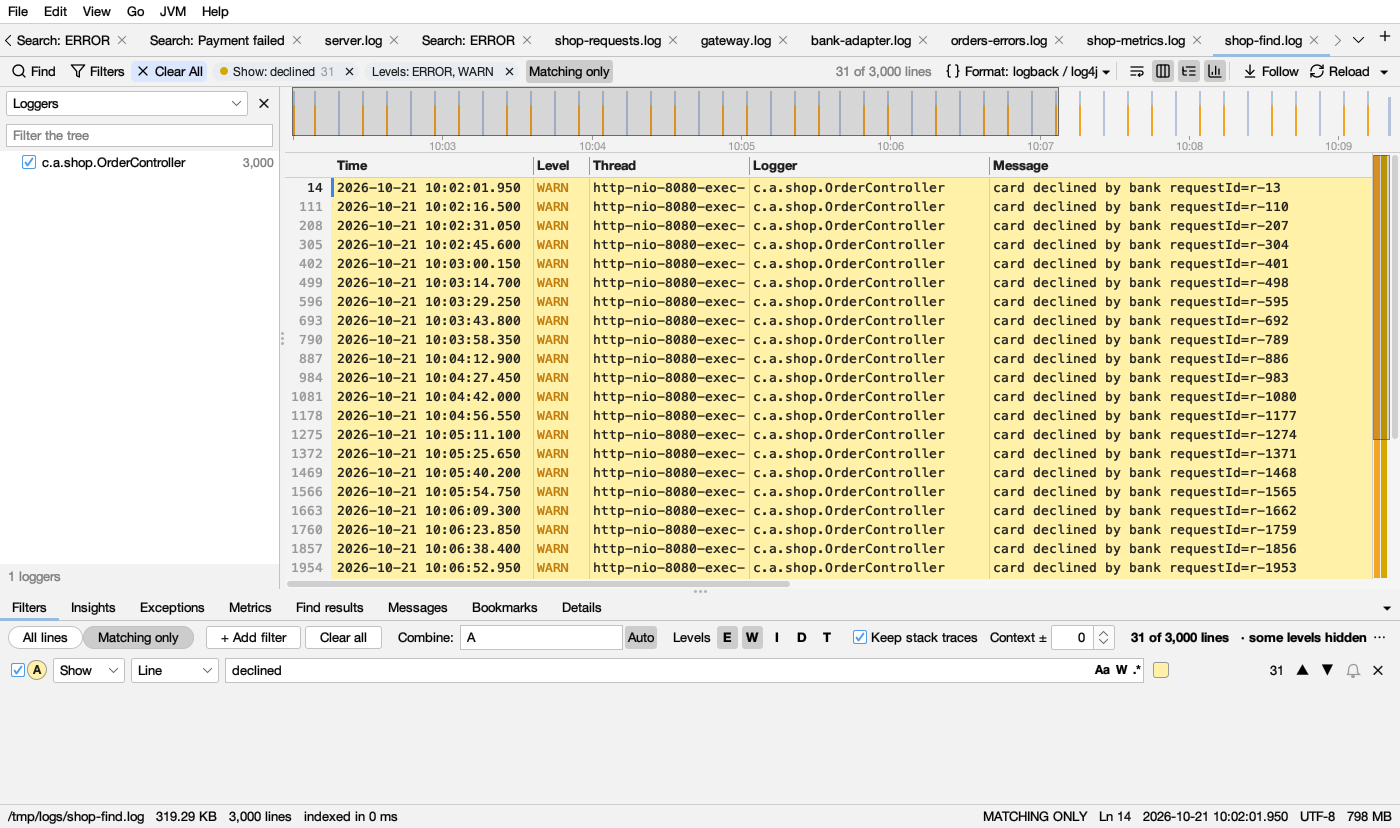
Adding a filter
- Select text in the log, right-click → Show / Hide / Mark lines with “…”.
- In the Columns view, right-click a value → Show Only Rows Where Host = web-1 or Hide Rows Where Host = web-1, or right-click a column title → Filter by … (see Filters on a column).
- In the find bar, Filter ▾ → Show Only Matching Lines, Hide Matching Lines or Color Matching Lines.
- In the Filters tab below the log, + Add filter.
The Filters tab
Each filter is a row:
| Part | What it does |
|---|---|
| Checkbox | Turns the filter on or off |
| A, B, C … | Its letter, for the formula. The circle has the filter’s colour |
| Show / Hide / Mark | Show keeps matching lines, Hide removes them, Mark only colours them |
| Line / a column | Where to look: the whole line, or one column of the log’s format. Shown when the log’s format has columns |
| contains / = / > / < / between | For a column: how its value is compared (below) |
| Text, with Aa W .* | What to match: match case, whole word, regular expression. A wrong regular expression gets a red outline |
| Colour | The colour of its lines (below), or No color |
| Count | How many lines match |
| ▲ ▼ | Previous or next matching line |
| Bell | Alerts for new matching lines (below) |
| ✕ | Removes the filter |
Up to 26 filters (A to Z). A new filter takes the colour used least; a Hide filter starts with none.
Filter colours
| Name | Line colour (light) | Line colour (dark) | Mark (chip dot, highlight bar) |
|---|---|---|---|
| Yellow | |||
| Green | |||
| Blue | |||
| Purple | |||
| Orange | |||
| Pink | |||
| Teal | |||
| Red |
A filter’s colour replaces the level colour on the lines it matches.
Filters on a column
A filter can look in one column instead of the whole line: pick the column in the list after Show / Hide / Mark (it says Line for the whole line). It works for every log Logsift shows as columns: CSV files, JSON logs, the built-in layouts and your own formats.
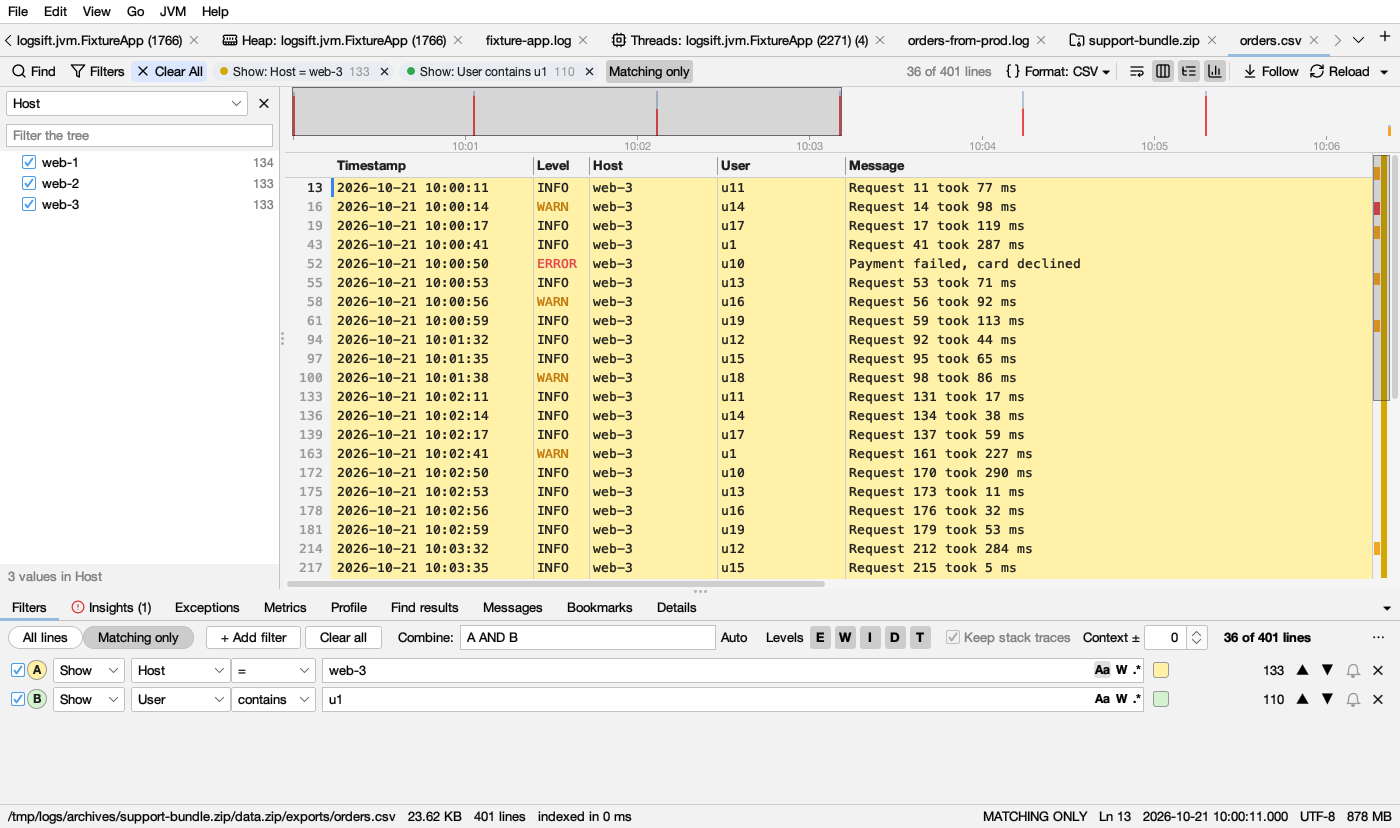
| Compare | Matches rows whose value |
|---|---|
| contains | contains the text. Aa, W and .* work as usual |
| = | is the text, all of it: web-1 is not web-10 |
| > / < | is a number above or below the one you type. Units count: 1.5 s is more than 800 ms, and 2 KB more than 900 |
| between | is a number from the first to the second: 10..20 includes both, 10..<20 leaves 20 out. A click on a Profile histogram bar adds one that keeps exactly that bar’s rows |
The quick ways:
- Right-click a value in the Columns view → Show Only Rows Where Host = web-1 or Hide Rows Where Host = web-1. This adds a = filter and switches to Matching only.
- Right-click a column title → Filter by … adds an empty filter on that column in the Filters tab, ready for the text.
- Count Values in … (right-click a column title): Show Only and Hide add a = filter on that column too.
A column filter shows as a chip like Show: Host = web-1. Lines that aren’t rows (stack traces, a CSV’s header row) don’t match it themselves; with Keep stack traces they go with their entry.
Combining filters
Combine says how filters work together, using their letters.
- Auto (on by default) writes it for you: any Show filter, and no Hide filter. For example
(A OR B) AND NOT C. - Type your own to get anything else:
A AND B,(A OR B) AND NOT (C OR D),NOT C.AND OR NOT ( )work, and so do& | ! -. Typing turns Auto off. A formula that can’t be read gets a red outline, and the last good one stays in use. - Mark filters only colour; they don’t change which lines show.
All lines or Matching only
All lines shows every line, with the lines your filters leave out grayed. Matching only (Ctrl+Shift+H, ⇧⌘H on macOS) shows only the lines that pass. Your place in the file is kept when you switch: filter down, click a line, switch back and see everything around it.
The count on the right says 65,361 of 1,832,469 lines (with context lines: … matching, … shown). It adds in the selected time range or some levels hidden when those apply.
Which tabs follow the filters
Some tabs below the log count only the lines the filters keep; the others always look at the whole log.
| Tab | Follows the filters |
|---|---|
| Metrics | With Matching only on and filters (or a time range) set |
| Profile | With Matching only on and filters (or a time range) set |
| Messages | When its list says Filtered lines instead of Whole file |
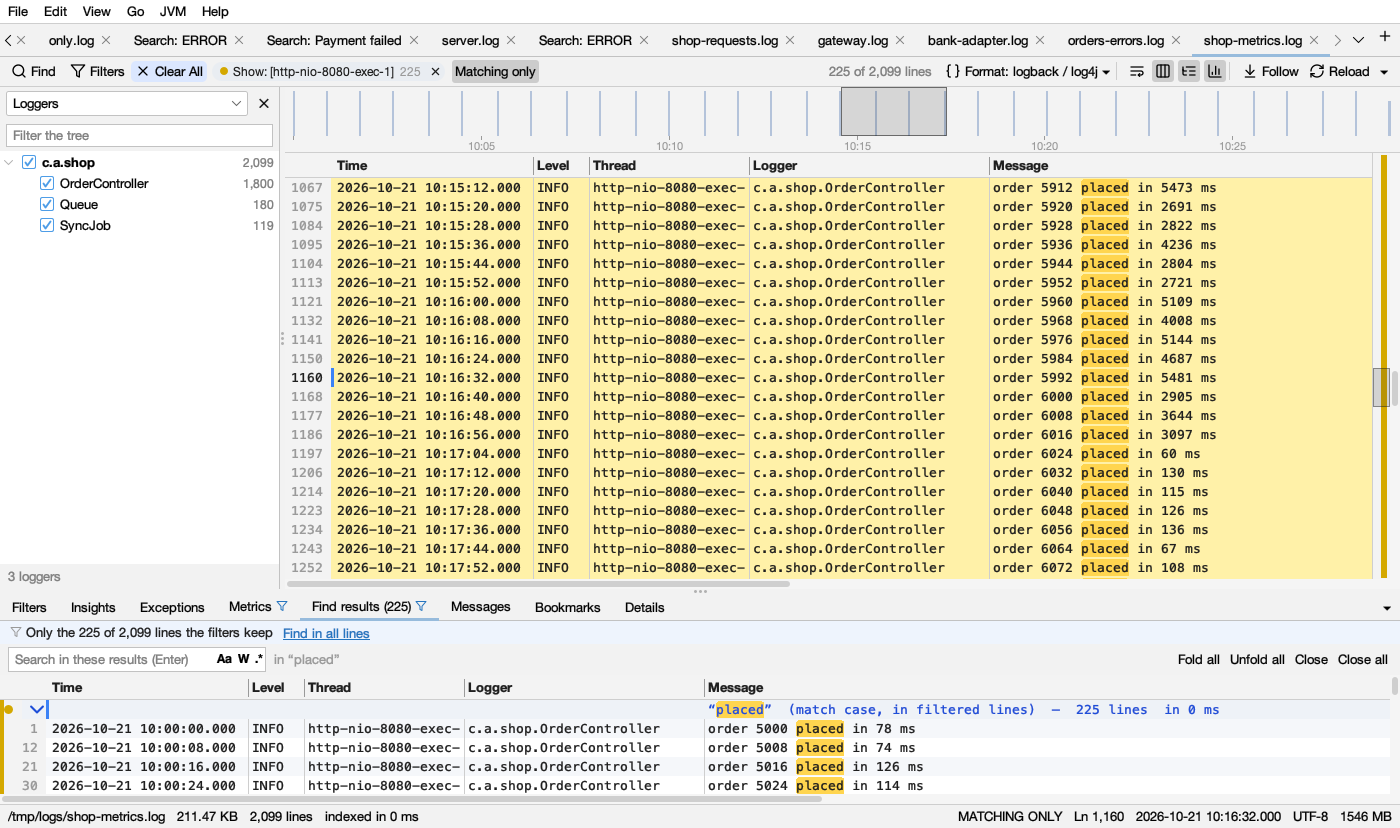
| Find results | A search run while Matching only was on finds in the filtered lines, and keeps to them (its header says in filtered lines) |
| Insights, Exceptions, Bookmarks | Never: always the whole log (hover the tab) |
| Details, Request | Show one entry or one request, as they are in the file |
How to tell: while a tab counts only the filtered lines, a blue filter icon follows its name (hover it: Counts only the lines the filters keep), and a strip in a pale blue (dark blue in dark mode) at the top of the tab says Only the 225 of 2,099 lines the filters keep. Its link goes back to every line: Show all lines (Metrics, Profile) turns Matching only off, Count all lines (Messages) counts the whole file, Find in all lines (Find results) runs the selected search again over every line.
Levels: E W I D T
The E W I D T buttons show only some levels, together with your other filters: errors (ERROR, FATAL, SEVERE, CRITICAL), warnings (WARN, WARNING), info (INFO, NOTICE), debug (DEBUG), trace (TRACE). All on means no level filtering. Turn off I, D and T to see just errors and warnings, stack traces included. With your own log format, its level column is used instead.
Keep stack traces and Context
- Keep stack traces (on by default) treats a log line and the lines under it (stack traces, wrapped messages) as one entry: if any line of the entry matches, the whole entry shows, and Hide filters hide whole entries. Hover it to see how Logsift found that entries start (a date, a time, a level word,
{for JSON). It is grayed out when every line stands alone. - Context ±N adds N grayed lines before and after each match (up to 50), with a dashed line where lines were skipped, like
grep -C.
Chips
Filters that are on show as chips in the log’s bar: Show: ERROR 65,529, Hide: …, Color: … (a Mark filter), Show: Host = web-1 (a filter on a column), with a dot in the filter’s colour and the number of lines.
- Click a chip to turn its filter off or on. An off chip is gray, with a dashed outline.
- ✕ removes it.
- Right-click to change what it does (On, Show, Hide, Color), Edit in Filters… or Remove.
- Other chips: Levels: ERROR, WARN (the levels shown), Time: … (a time range from the timeline), Tree: N hidden (branches hidden in the tree of loggers). Their ✕ clears them.
- Chips that don’t fit fold into +N more, which opens the Filters tab.
Alerts
Click the bell on a filter to be told when new lines matching it are written (while the file grows). The bell turns amber. Logsift shows a desktop notification and a popup you can click to jump to the line, beeps, and puts a count on the tab. Bursts are combined: at most one alert per filter every 3 seconds. Lines that were already in the file don’t alert.
Clearing
- Clear All in the log’s bar (lit in blue while anything is set) goes back to the whole log: it removes every filter, turns all levels back on, clears the time range and what the tree hides, and closes the find bar and the Find results.
- Clear all in the Filters tab clears only the filters.
Saving filters
The ⋯ menu in the Filters tab: Save Filters…, Load Filters… (.lmfilters files), Remove All Filters. Each log also remembers its own filters, formula, level buttons and Matching only for next time.