Find
The find bar
Ctrl+F (⌘F on macOS), or Find in the log’s bar, opens a find bar at the top of the log, with the selected text filled in.
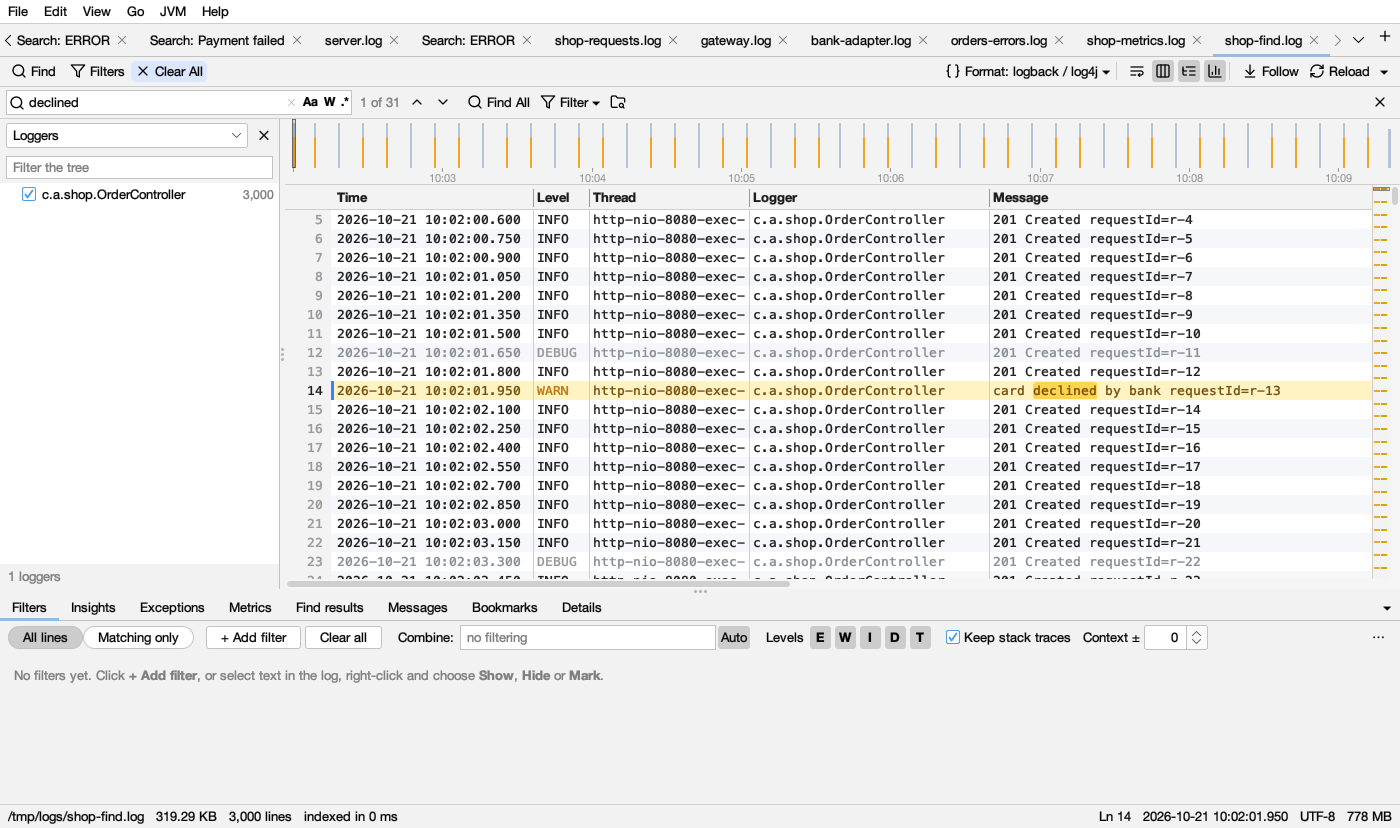
- Matches light up in yellow as you type ( dark yellow in dark mode), and the log goes to the first match at or after the current line.
- Inside the box: Aa (match case), W (whole word), .* (regular expression).
- The count: 3 of 1,240 when you are on a match, else 1,240 matches. … means it is still counting; + means there are more than it counts. no matches outlines the box in amber; invalid regex outlines it in red (hover for why).
- Enter / Shift+Enter (or ▼ ▲) go to the next and previous match. F3 / Shift+F3 do the same from anywhere (also ⌘G / ⇧⌘G on macOS).
- Find All (Ctrl+Enter) lists every match in Find results below the log.
- Filter ▾ turns the search into a filter: Show Only Matching Lines, Hide Matching Lines or Color Matching Lines (see Filters).
- The folder button searches for it in a whole folder, zips included (see Folder search).
- Esc closes the bar. The text is kept for next time.
Find All and the results
Each Find All is added to the top of the Find results tab and opens there. Earlier searches fold to a header line (“ERROR” — 1,234 lines) and stay available.
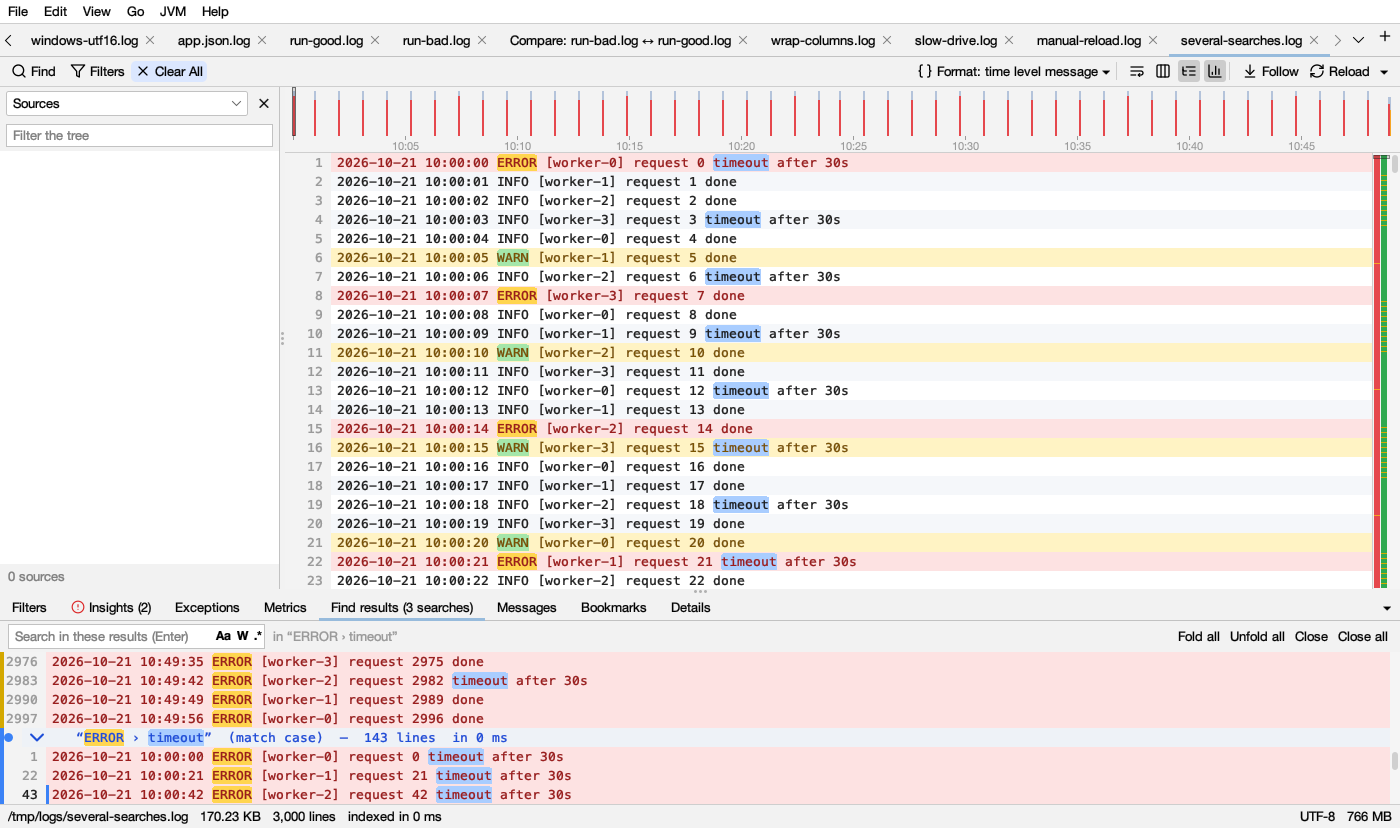
Every search gets its own colour, in the log, on the highlight bar, and as a dot on its header and a stripe on its lines. The colours, in order, then again:
| # | In the log (light) | In the log (dark) | Mark |
|---|---|---|---|
| 1 | yellow | ||
| 2 | green | ||
| 3 | blue | ||
| 4 | pink | ||
| 5 | orange | ||
| 6 | purple | ||
| 7 | teal |
- Click a line to go there in the log (or move with the arrow keys; Enter or a double-click goes there too).
- Click a header (or press Enter, ← or →) to fold or open it. Fold all / Unfold all do every search.
- F3 / Shift+F3 step through the selected search’s hits.
- Running a search you already have moves it back to the top.
- Close removes the selected search (Shift+Esc), Close all every one. A middle click on a search’s header closes it too.
- The header says how the search ran: (regex, match case, whole word), how long it took, and (limit reached) when there were too many hits to list.
Search within results: select a search (or any of its lines), type in Search in these results and press Enter. A nested search like “ERROR › timeout” appears under it, showing only the lines that match both. You can keep narrowing. Closing a search also closes the searches nested in it.
With filters on: while the log shows only the lines its filters keep (Matching only), Find All finds in those lines (in filtered lines), and follows the filters as they change.
Growing files: Find All keeps running. New matching lines show up in the results as they are written, in nested searches too.
Go to a line or time
- Go → Go to Line… (Ctrl+L).
- Go → Go to Time… (Ctrl+Shift+L) takes
10:05,10:05:30.250or2026-10-21 10:05. - F8 / Shift+F8: next or previous error.